
Your laptop slows to a crawl during video editing. The fan screams like a jet engine. That familiar “hot lap” sensation warns you it’s overheating—again. This isn’t just annoying; sustained high temperatures can permanently damage your CPU and GPU. Understanding exactly how does a laptop cooler work is the first step to preventing thermal throttling and extending your machine’s lifespan. In this guide, you’ll discover the hidden engineering that keeps silicon from melting, why cooling pads deliver mixed results, and actionable fixes to keep your laptop running cool under pressure.
Why Your Laptop’s CPU/GPU Generates Dangerous Heat (And How Cooling Prevents Meltdowns)
Modern processors pack billions of transistors into a thumbnail-sized space. When electricity flows through these microscopic circuits, resistance converts energy into heat—up to 100+ watts in gaming laptops. Without intervention, chips would exceed 100°C within seconds, triggering automatic shutdowns or permanent damage. The cooling system’s sole mission: move this heat away from silicon before it cooks the circuitry. It accomplishes this through a continuous thermal transfer cycle using three critical components working together.
Heat Pipes: Your Laptop’s Hidden Heat Superhighways
- Heat Absorption: Thermal paste transfers heat from the CPU/GPU die to a copper base plate. This plate connects to sealed copper heat pipes filled with a small amount of purified water or ammonia.
- Phase Change Magic: Heat vaporizes the fluid at the “evaporator” end (touching the CPU). This superheated vapor zips through the pipe at high speed.
- Heat Release: At the “condenser” end (embedded in the heat sink fins), the vapor cools, condenses back to liquid, and releases its heat. Capillary action in the pipe’s wick structure pulls the liquid back to restart the cycle. This phase-change process moves heat 10-20x faster than solid copper alone.
Heat Sinks and Fans: Where Heat Meets Airflow
- Aluminum Fins Do the Heavy Lifting: The condensed heat transfers to dense aluminum fins attached to the heat pipes. These fins multiply surface area—often by 30x—to maximize contact with air.
- Fans Force Critical Airflow: A centrifugal fan (resembling a tiny jet engine) pulls cool air through bottom/side vents, blasts it through the fin matrix, and exhausts hot air out rear/side vents. Without this forced airflow, heat would stagnate inside the chassis. Blocking vents with blankets or carpets cuts airflow by 70%, causing immediate thermal throttling.
Active vs. Passive Cooling: Why Your Laptop Needs a Fan (Not Just Metal)
Passive cooling—relying solely on metal heat sinks without fans—works for low-power devices like tablets but fails for performance laptops. Here’s why active cooling dominates:
- Physics Limitation: Natural convection (heat rising) moves air too slowly for modern chips. A passive heat sink would need to be 3-4x larger than your entire laptop to handle 45W+ heat loads.
- Real-World Proof: Try running a CPU stress test on a gaming laptop with the fan disabled. Temperatures hit throttling limits (95°C+) within 60 seconds, while active cooling maintains 80-85°C under sustained load.
- The Exception: Fanless designs like the MacBook Air M-series use Apple’s ultra-efficient ARM chips (15-20W TDP) and massive heat spreaders across the chassis. Don’t expect this in Intel/AMD performance laptops.
Do Laptop Cooling Pads Actually Work? Testing the Hype
Most users buy cooling pads expecting dramatic temperature drops. The reality is more nuanced—and depends entirely on your laptop’s vent design.
How Cooling Pads Really Fix Overheating (Hint: It’s Not the Fans)
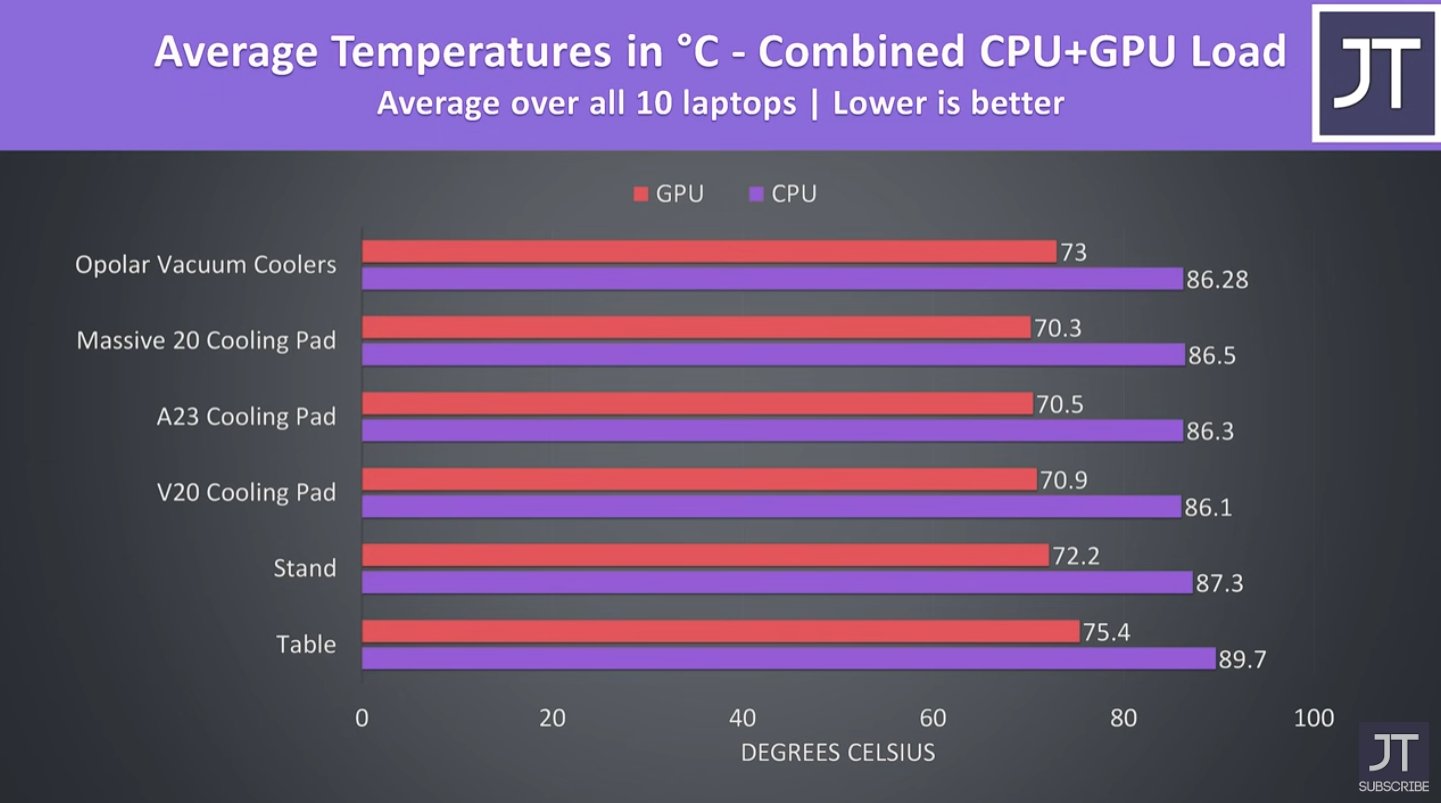
– The #1 Fix: Unblocking Bottom Vents: 80% of laptops draw intake air through the bottom panel. Placing them on beds/couches seals these vents shut. A cooling pad’s primary value? Lifting the laptop 1-2 inches to restore airflow. This alone often drops temps 5°C.
– Fan Assistance is Secondary: The pad’s fans push ambient air into the intake vents. They don’t need “cold” air—just moving air. In tests with a Razer Blade 15, a basic pad reduced CPU temps from 93°C to 86°C during gaming by supplementing the laptop’s own fans.
– When They Fail: Laptops with side/rear intakes (e.g., Dell XPS 13) gain little from cooling pads. Elevating the rear (not the base) improves airflow more effectively.
Advanced Cooling Tech in High-End Laptops (Beyond Basic Heat Pipes)
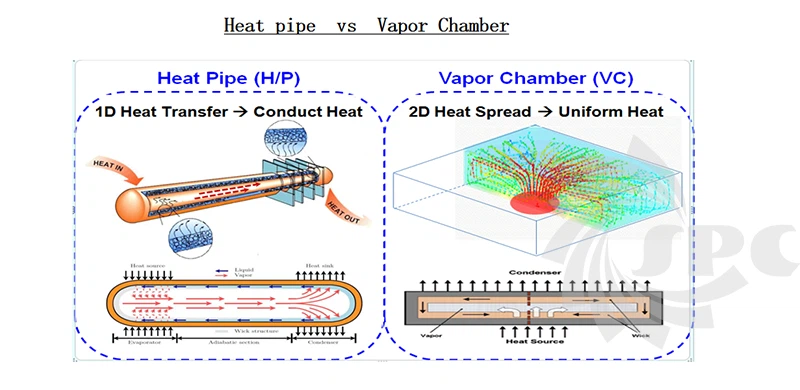
Thin gaming laptops and workstations deploy sophisticated solutions to handle 100W+ heat loads in slim chassis.
Vapor Chambers: The Secret in MacBook Pro & Slim Gaming Laptops
- How They Beat Heat Pipes: Instead of round tubes, vapor chambers are flat, sealed copper plates with a micro-wick structure. Heat spreads radially across the entire chamber surface, not just linearly through pipes.
- Real Advantage: In the 14″ MacBook Pro, this spreads M1 Pro heat across a wider heat sink area, allowing quieter fan operation. Gaming laptops like the ASUS ROG Zephyrus use them to cool both CPU and GPU with a single, ultra-thin assembly.
Liquid Metal: The High-Risk, High-Reward Thermal Paste
- Why It’s 5x Better: Gallium-based liquid metal (e.g., Thermal Grizzly Conductonaut) conducts heat 73 W/mK vs. standard paste’s 12 W/mK. This bridges the gap between silicon and cooler more efficiently.
- Critical Warning: It’s electrically conductive. A single drop bridging CPU contacts can fry your motherboard. Only attempt reapplication if you’ve seen professional tutorials—and never on laptops with exposed CPU contacts.
Your 5-Minute Laptop Cooling Tune-Up (No Tools Needed)
Don’t wait for thermal throttling. These fixes take minutes but prevent long-term damage.
Immediate Hardware Fixes
- Clear Vent Blockages Now: Shut down your laptop. Use a soft brush to remove hair/dust from exhaust vents (usually along rear edges). Blocked exhaust is the #1 cause of sudden overheating.
- The Book Trick: Elevate the back edge 0.5-1 inch using a hardcover book. This creates a natural airflow ramp, pulling 30% more air through the system than a flat surface. More effective than most cooling pads.
- Avoid the “Lap Trap”: Never use laptops directly on soft surfaces. The fabric blocks vents and insulates heat against your legs—creating a double overheating risk.
Pro Software Tweaks to Reduce Heat
- Limit CPU Power (Windows):
Go to Control Panel > Hardware and Sound > Power Options > Change plan settings > Change advanced settings. Expand Processor power management > Maximum processor state. Set to 98% for balanced use. This prevents brief 100% spikes that trigger fan noise. - Kill Background Heat Monsters: Open Task Manager (Ctrl+Shift+Esc). Sort by “CPU” to find apps idling at 15-20% usage (common culprits: updaters, crypto miners, bloated browsers). End those tasks immediately.
- Undervolting (Advanced): Tools like ThrottleStop (Intel) or Ryzen Controller (AMD) let you reduce CPU voltage by 50-100mV. This can drop temps 5-8°C with zero performance loss—but requires careful calibration. Only attempt after watching manufacturer-specific guides.
When to Consider Deep Maintenance (Beyond Compressed Air)
Factory thermal paste dries out after 3-5 years, creating a “thermal barrier” between CPU and cooler. Symptoms include:
– Sudden fan spikes during light tasks
– Thermal throttling at lower temperatures than when new
– Core temps exceeding 95°C under moderate load
The Fix: Reapplying thermal paste. Requires disassembling the laptop to access the CPU/GPU. Use high-quality paste like Thermal Grizzly Kryonaut. Never spread paste with your finger—apply a rice-grain-sized dot and let mounting pressure spread it. Skip liquid metal unless you’re experienced.
Final Note: Your laptop cooler isn’t magic—it’s precision engineering fighting physics. By understanding how heat pipes move thermal energy, why airflow blockages cripple cooling, and which fixes deliver real results (elevation > cooling pads), you’ll prevent throttling and extend your machine’s life. Implement the book trick and power setting tweaks today; they’re free, instant, and more effective than most “pro” cooling solutions. For persistent overheating, focus on vent clearance and thermal paste refresh—these address 90% of real-world cooling failures.