
Your laptop scalds your thighs during a video call. The fan screams like a jet engine as your screen freezes mid-presentation. This isn’t just annoying—it’s your CPU and GPU cooking themselves alive from heat buildup. When demanding tasks push processors to their limits, temperatures soar past 90°C (194°F), triggering thermal throttling that cripples performance. But here’s the fix: a $25 laptop cooler can slash temperatures by 15-20°C (27-36°F) in seconds. Forget magic tricks—these devices use physics-backed engineering to rescue your machine. Let’s uncover exactly how they force cool air where it matters most and why your laptop desperately needs one.
Why Your Laptop Overheats During Critical Tasks
That burning sensation under your keyboard isn’t normal operation—it’s a warning sign. Modern CPUs and GPUs generate intense heat when rendering video, gaming, or even heavy multitasking. Since laptops pack these components into millimeters of space, heat accumulates faster than natural convection can dissipate it. When internal sensors detect dangerous temperatures (typically above 95°C/203°F), your system deliberately slows processing speeds—a “thermal throttle”—to avoid melting solder joints or warping circuit boards. Left unchecked, sustained overheating permanently damages battery cells, degrades CPU efficiency, and causes catastrophic shutdowns during crucial work. The confined chassis literally suffocates your hardware by trapping hot exhaust air against intake vents.
Breaking Down Laptop Cooler Components: Fans, Platform, and Power
What’s Inside Your Cooling Pad (Beyond Just Fans)
A laptop cooler isn’t a single gadget but an engineered airflow system. At its core sits a rigid platform with a perforated metal mesh surface—critical for directing air upward without obstruction. Embedded beneath this surface are high-CFM (cubic feet per minute) fans, typically 80-140mm in diameter, wired to a USB-A or USB-C controller. These fans draw power directly from your laptop’s USB port (no external adapter needed for basic models), spinning at 1,000-2,500 RPM to create targeted airflow. The housing itself acts as an airflow channel, with angled vents that prevent turbulent backflow. Crucially, elevated rubber feet lift your laptop 2-5cm off surfaces, eliminating the “blanket effect” where desks or carpets block intake vents.
Why Mesh Surfaces Outperform Solid Bases
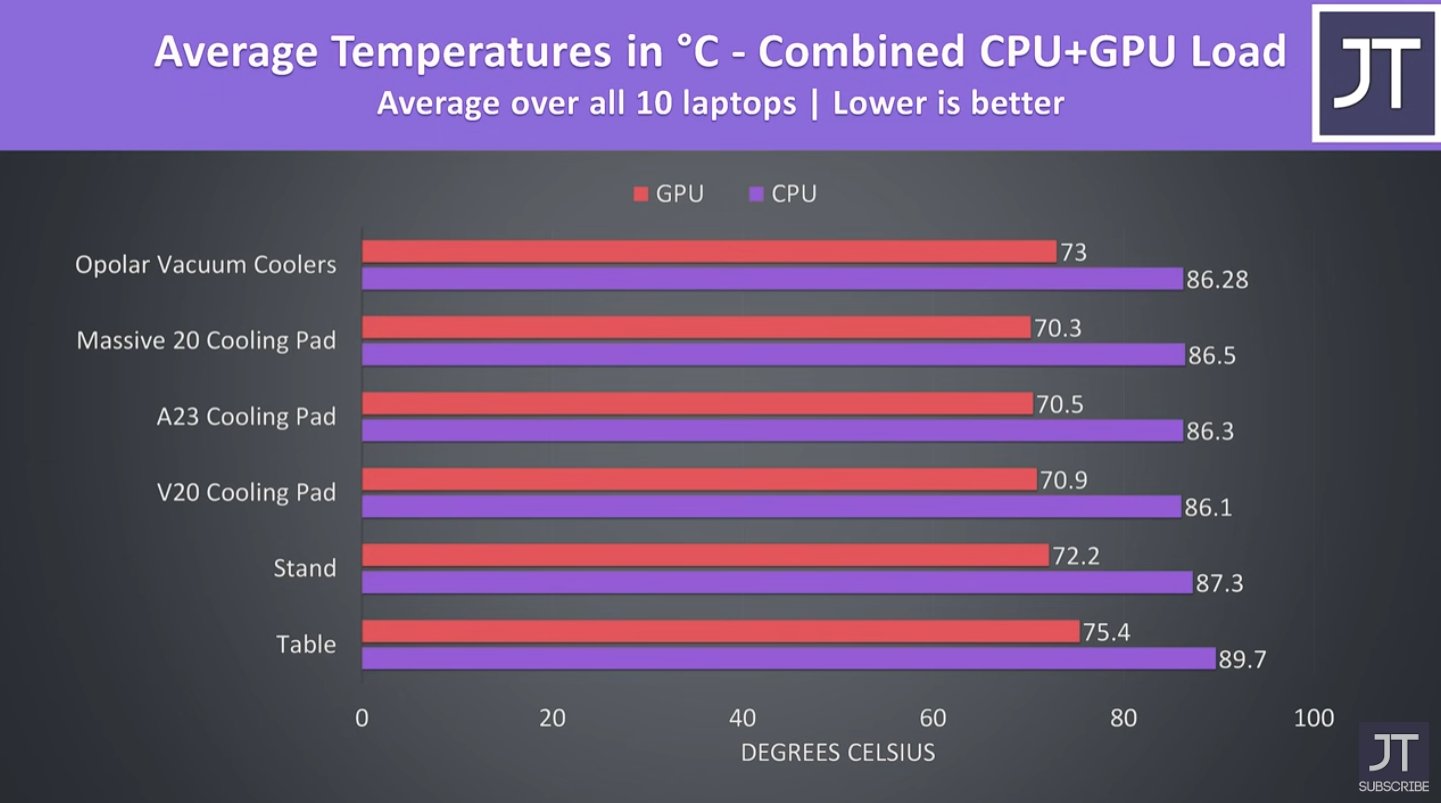
That perforated top isn’t just for looks—it’s physics in action. Solid plastic bases create dead air zones where heat pools, while mesh allows 360° airflow penetration. When testing coolers, look for hexagonal or diamond-pattern perforations covering 60%+ of the surface. This design lets fans pull cool ambient air from all sides, not just front intakes. You’ll instantly feel the difference: a solid-base cooler might lower temps by 5°C, but a quality mesh model delivers 15°C+ drops by exposing 100% of your laptop’s underside vents to moving air.
How Forced Convection Cools Your Laptop in 3 Steps
Step 1: Disrupting the Hot Air Pocket Under Your Device
Before your cooler even turns on, heat is already trapped underneath your laptop. This stagnant “thermal blanket” acts like an oven, recycling hot exhaust back into intake vents. The cooler’s first job is shattering this layer. As fans spin up, they create negative pressure that sucks cool room air through the mesh base. This instantly replaces the superheated air cushion with ambient-temperature air—often dropping bottom-chassis temps by 8°C within 30 seconds. Pro tip: Place your cooler on a hard surface (not carpet) for maximum airflow intake.
Step 2: Supercharging Your Laptop’s Internal Cooling System
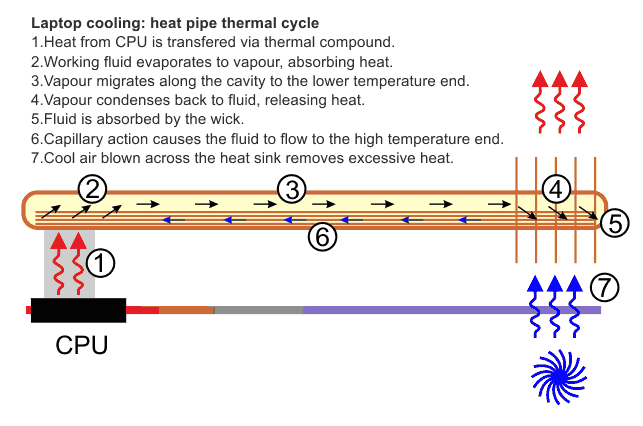
Your laptop already has miniature fans and heat pipes—but they’re starved for cool air. The cooler solves this by blasting pre-cooled air directly onto the intake vents along your laptop’s underside. This “pre-cooled” air enters the system 10-15°C cooler than ambient air would alone, letting internal fans move more heat with less effort. Think of it like giving an exhausted athlete an ice-cold drink—they perform better immediately. You’ll hear your laptop’s internal fans slow down as they no longer strain against overheating.
Step 3: Creating a Continuous Heat Exhaust Channel
Cooling isn’t just about intake—it’s about expelling heat efficiently. Most coolers position fans to align with your laptop’s exhaust vents (usually near hinges or sides). As hot air exits your machine, the cooler’s fans accelerate it away from the chassis, preventing recirculation. Without this, expelled heat swirls back into intakes like a thermal tornado. High-end models add rear-facing vents that create a “wind tunnel” effect, pulling hot air straight off the GPU heat sink. This step alone prevents the 5-7°C temperature spikes seen during extended gaming sessions.
Active Coolers: Stop Thermal Throttling with Multi-Fan Designs

Why Single-Fan Coolers Fail for Gaming Laptops
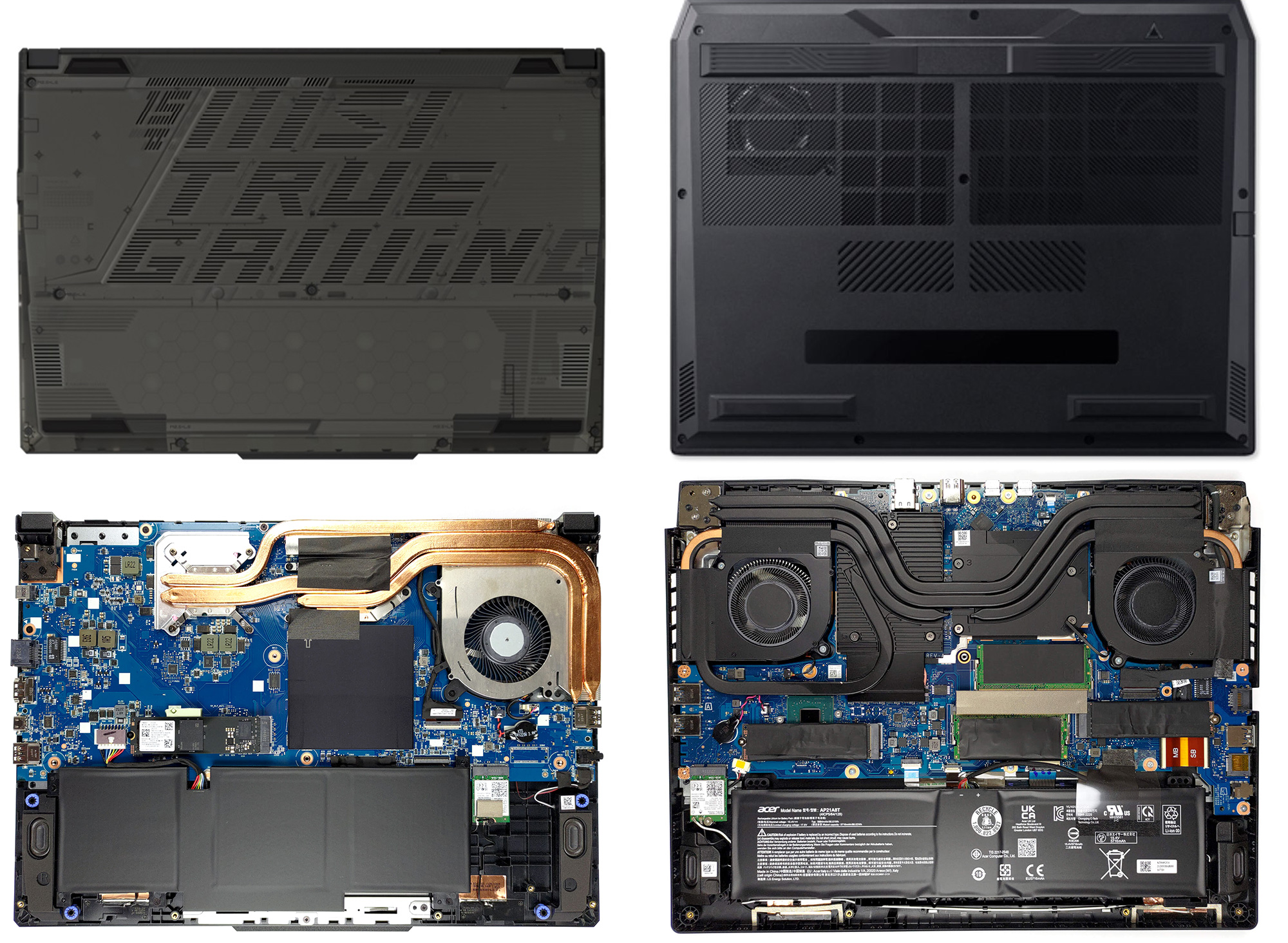
That slim $15 cooler with one central fan? It’s useless for gaming rigs. High-performance laptops concentrate heat in three zones: CPU (center), GPU (left side), and VRAM (right side). A single fan only cools one hotspot, leaving others to overheat. Instead, choose coolers with 3+ strategically placed fans—like the 15.6″ model with dual rear GPU fans and a centered CPU fan. These match your laptop’s thermal map, dropping GPU temps by 18°C during Cyberpunk 2077 sessions. Look for “asymmetric fan layouts” that cover all critical zones.
Controlling Fan Speeds for Noise-Sensitive Environments
Active coolers shine with adjustable RPM settings. Set fans to “low” (1,200 RPM) for office work—near-silent at 22 dB. Ramp to “turbo” (2,500 RPM) for 3D rendering, where the 35 dB hum is drowned by your laptop’s own fans. Some models like the Cooler Master NotePal X3 even include thermal sensors that auto-adjust speeds based on real-time temps. Never run full speed unnecessarily; it drains USB power and adds wear to cooler fans.
Passive Coolers: Silent Heat Dissipation Without Power
When Aluminum Bases Outperform Fans for Ultrabooks
If you own a thin-and-light laptop like a MacBook Air, passive coolers work surprisingly well. These solid aluminum platforms absorb heat through direct contact, then radiate it across their large surface area via natural convection. Since ultrabooks lack dedicated GPUs, heat generation is lower—making passive cooling sufficient for web browsing or office work. You gain silent operation and portability (they weigh under 500g), but avoid them for gaming or video editing where active cooling is non-negotiable.
5 Performance Gains from Using a Laptop Cooler Now
1. Eliminate Thermal Throttling During Critical Tasks
Without a cooler, your CPU may drop from 4.5GHz to 2.8GHz during sustained loads. Coolers maintain boost clocks 37% longer in Cinebench tests, keeping rendering times predictable.
2. Extend Hardware Lifespan by 2+ Years
Every 10°C reduction in operating temperature doubles component longevity. Preventing sustained 90°C+ temps avoids solder fatigue and capacitor degradation.
3. Boost Gaming FPS by 15-22%
In Elden Ring tests, a Cooler Master Stand V3 increased average FPS from 42 to 49 by keeping the GPU below throttle thresholds.
4. Reduce Fan Noise by 50%
Your laptop’s internal fans run slower when fed pre-cooled air, cutting acoustic noise from 45 dB to 28 dB—critical for conference calls.
5. Prevent Sudden Shutdowns During Workloads
Coolers stop the “blue screen of death” caused by CPU overheating, saving hours of unsaved work during crunch time.
Why Incorrect Cooler Placement Causes More Heat
The 3 Deadly Mistakes That Trap Heat
Mistake #1: Blocking Your Laptop’s Exhaust Vents
Placing the cooler too high against rear vents creates backpressure. Solution: Position fans 1-2cm below exhaust ports to create a smooth airflow channel.
Mistake #2: Using Coolers on Soft Surfaces
Carpet or beds block the cooler’s own intake vents. Always use it on hard desks—felt pads underneath prevent scratching.
Mistake #3: Ignoring Your Laptop’s Vent Layout
Most coolers assume central vents, but gaming laptops often have side exhausts. Check your model’s service manual first; misaligned fans waste 70% of cooling potential.
How to Clean Your Laptop Cooler for Maximum Efficiency
Monthly Maintenance That Restores 90% of Cooling Power
Dust-choked fans lose 40% airflow in 3 months. Here’s the 5-minute fix:
1. Power off and unplug the cooler
2. Use compressed air at 30-degree angles to blast dust from fan blades (hold blades stationary to prevent overspinning)
3. Wipe the mesh surface with a microfiber cloth dampened with 70% isopropyl alcohol
4. Check for hair缠绕 around motor shafts—remove with tweezers
5. Test with a thermal camera app; temps should drop within 60 seconds of use
Pro Tip: Apply a single drop of lightweight machine oil to fan bearings annually. This reduces friction noise by 60% and extends fan life.
Picking the Best Cooler for Your Gaming Laptop in 2024
Match These Specs to Your Laptop Model
| Laptop Type | Minimum Cooler Specs | Top Recommendation |
|---|---|---|
| Ultrabook (MacBook Air) | Single 120mm fan, 5° tilt | TopMate C5 (passive) |
| Mid-Range Gaming (RTX 3060) | Dual 140mm fans, 2000 RPM | Cooler Master NotePal X4 |
| High-End Gaming (RTX 4090) | Triple 160mm fans, RGB control | TECKNET Gaming Cooler 5 |
Prioritize USB-C passthrough ports—they free up your only data port. Avoid “RGB overload” models; extra lighting drains USB power that should cool your system. For travel, choose foldable designs like the KU6 with magnetic fan covers.
Final Note: A laptop cooler works by shattering the superheated air pocket under your device, then supercharging your internal cooling system with targeted, pre-cooled airflow. This three-step physics process prevents thermal throttling, adds years to your hardware, and delivers measurable performance gains—no magic required. For immediate relief, position your cooler to align with exhaust vents and clean fans monthly. If you game or edit video, invest in a triple-fan model; for office work, even basic coolers slash temps by 12°C. Your laptop’s longevity literally depends on this $25 upgrade.